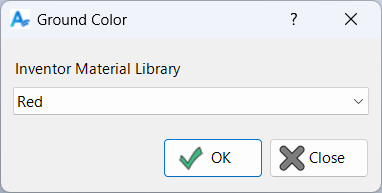
Ground Color
Overview
Ground Color sets the color used to visually identify grounded components. The Ground commands apply this color as an appearance override so grounded parts are easy to spot.
Coloring grounded components is a useful workflow reminder: once your modifications are complete and there are no constraint errors, unground the components and restore their normal appearance.
How It Works
- Run Ground Color.
- Select the color to assign to grounded components.
- When you run Ground On / Ground On All, grounded components are displayed in that color until you unground them.
Usage Instructions
- Open your assembly in Inventor.
- Click Ground Color in the Placement panel.
- Select the desired color.
- Ground components as needed and observe the color change.
Tips and Troubleshooting
- Color does not appear: Ensure the component is actually grounded and check for conflicting appearance overrides.
- Color appears but won’t clear: Use Ground Off or Ground Off All to remove the ground workflow override.
Examples
- Highlight grounded components: Assign a bright color to easily spot grounded parts during assembly edits.
- Visual reminder: Color coding helps you remember to unground components after modifications.